Activity Progress
The Activity Progress page will show a list of all the activities required for your assignment to graduate.
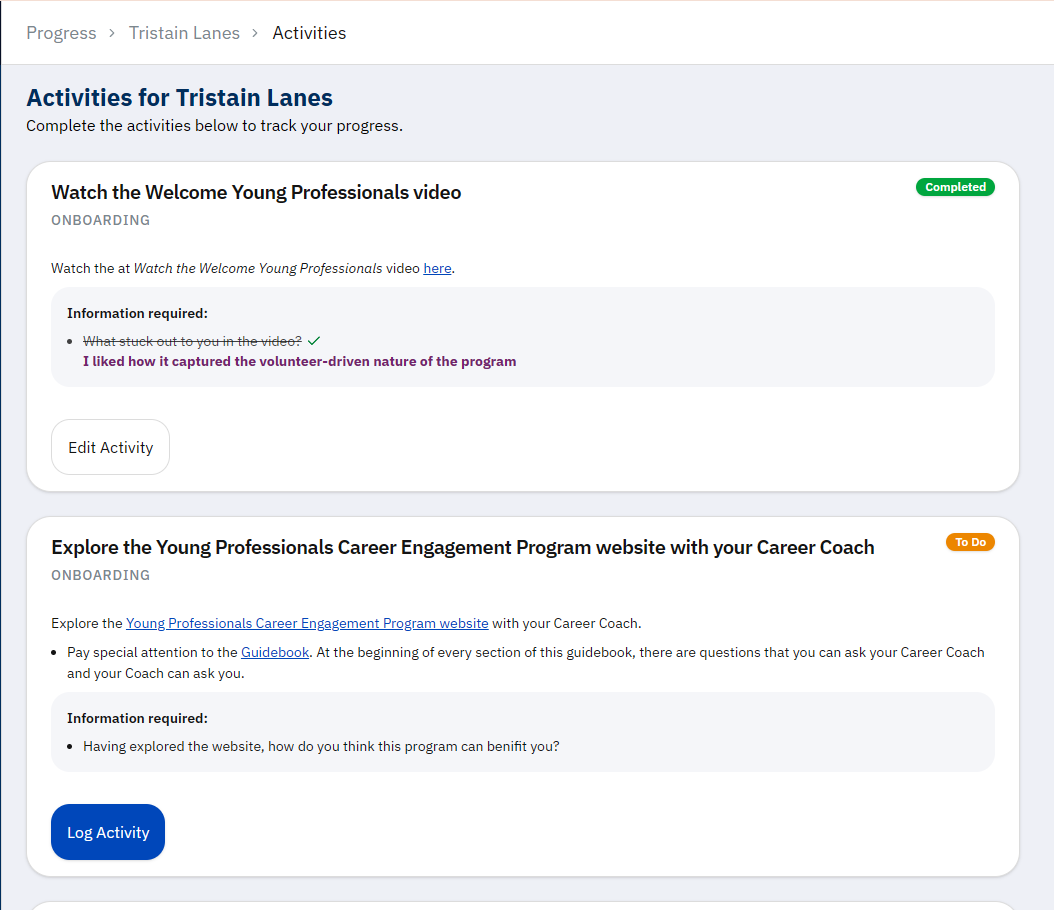
Each activity will show as a card. The card will have a status badge to indicate the progress of the activity.
The description of each activity will be visible, as well as the information/questions associated with the activity. If you have completed the activity, your responses will be visible.
If your coach or mentor has left notes on the activity, you will see their notes as well.
Generally, an activity is completed in this order:
A coach/mentor and young professional meet for the activity.
The coach/mentor assigns the activity on the Registration Detail page (and optionally leaves notes).
A young professional fills out the responses to the questions (the coach/mentor can optionally do this for them).
Statuses
There are a few different statuses an activity can have.
Completed
Activities are marked as completed when all the fields have responses.
Incomplete
An assignment is incomplete if at least on of the following apply:
A coach/mentor has assigned an activity on the registration page, but the young professional has not responded to the fields.
A young professional has completed some fields, but not all of them.
Todo
The coach/mentor has not assigned an activity, and the young professional has not filled out any fields.
Log Activity
When you click to log or edit the activity, you will see a modal open.
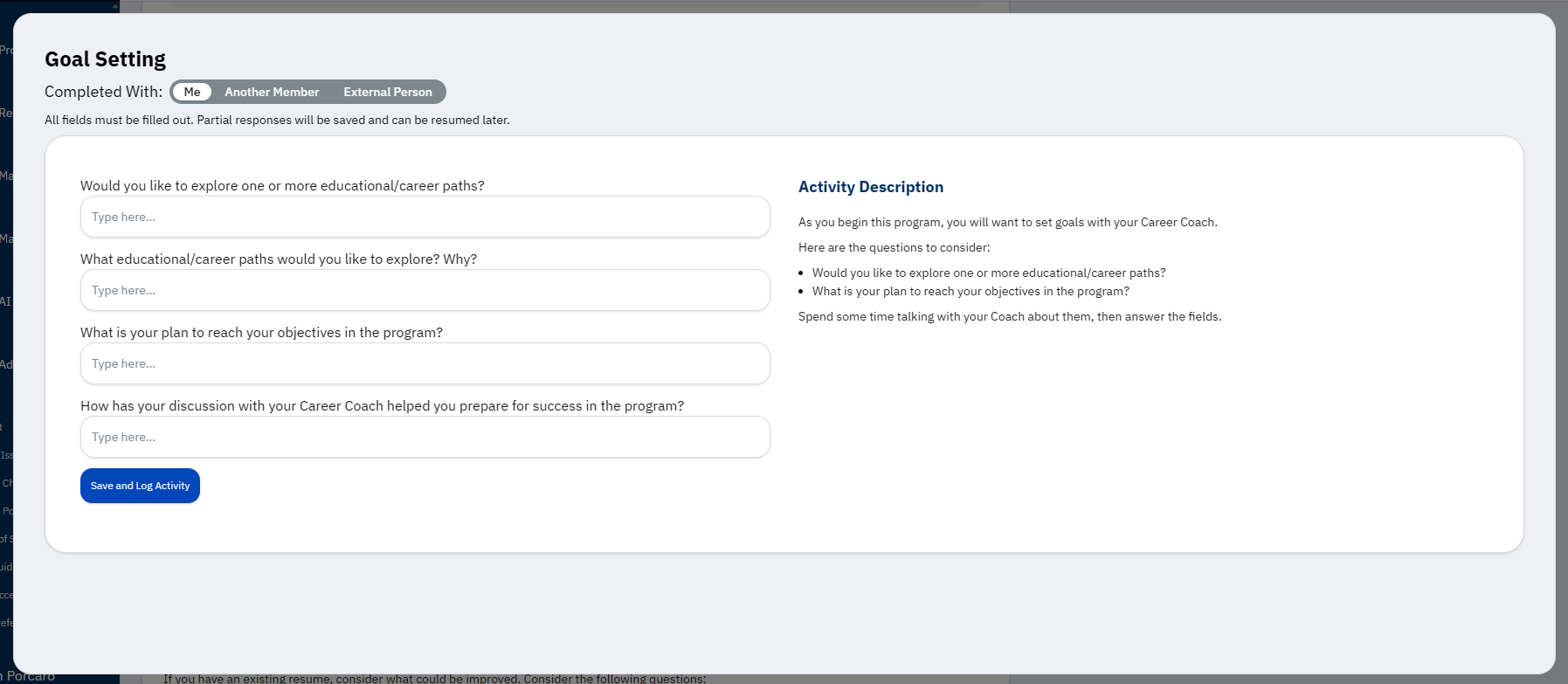
At the top, you will see the name of the activity.
Completed With
Below this, you will see a Completed With switch. This will allow you to select who the activity is completed with. By default, it will be you.
Another Person
You may also select another person within the system. Doing so will display a search bar to find that person.
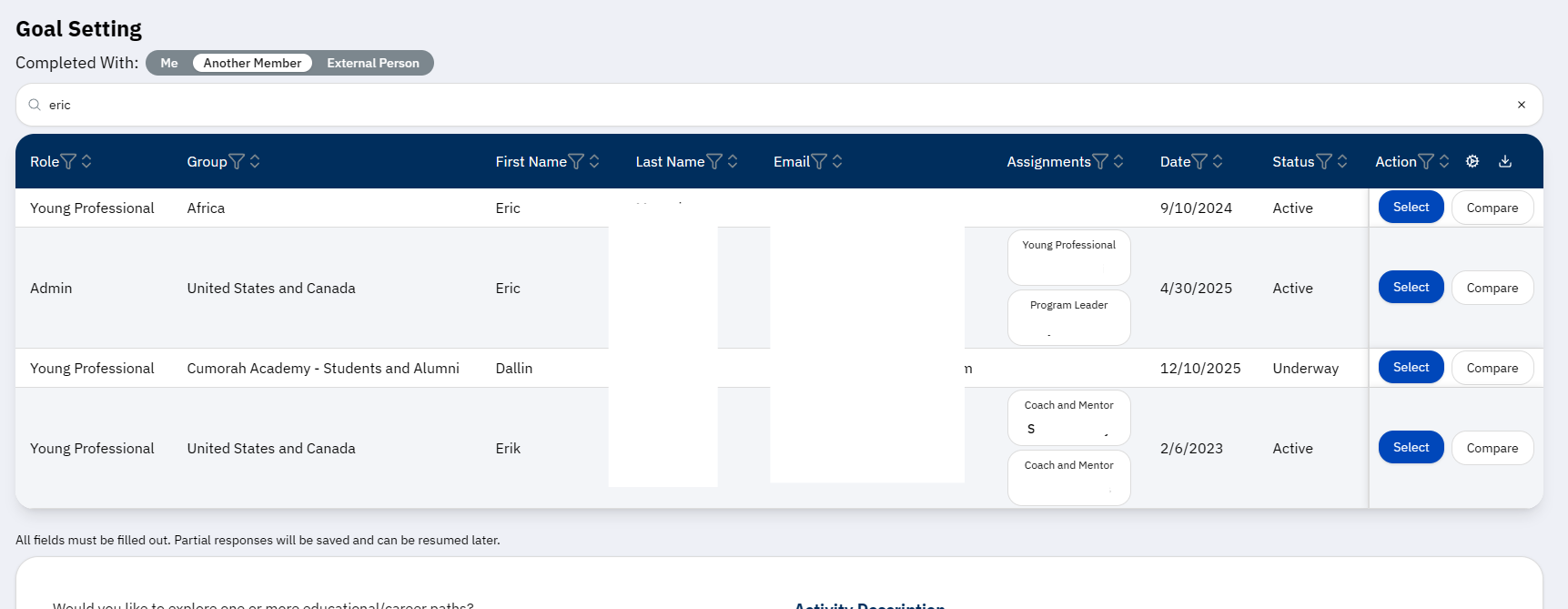
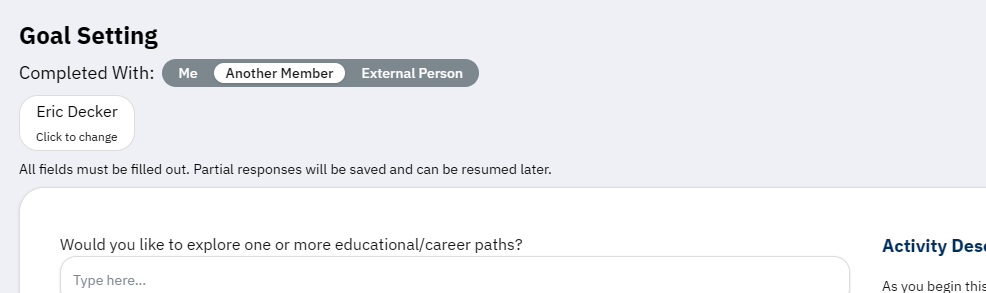
Once they are selected, you will see their name as a tile. If you click the tile, it will remove that person and allow you to search again.
External Person
If the person is external, you will see a text field to enter their name.
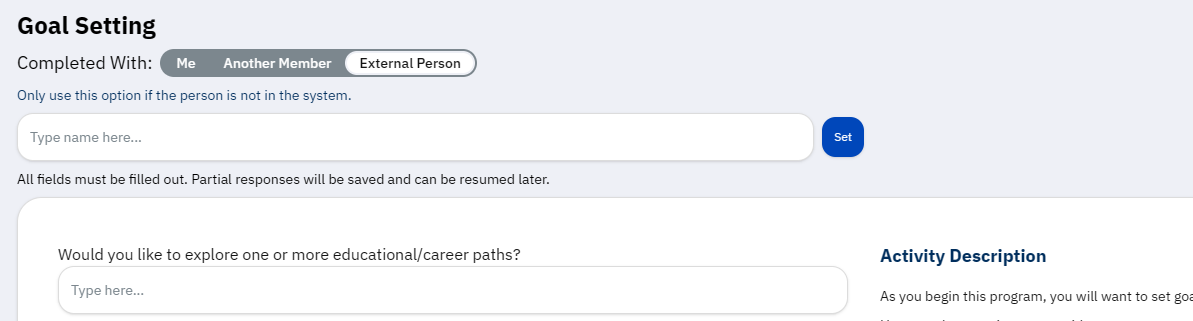
Warning
Only add external users if they are not in the system. Please have them register if possible. When they register, please update the activity to link to their registration.
Activity Contents
The activity contents are below. On the left, you will see input fields for the activity’s questions. The activity’s description will be visible on the right.
All fields must be filled to complete the activity, but partial progress will be saved when you click Save and Log Activity.