Registration List and Details
Roles that can access this feature:
Coach
Coach and Mentor
Regional Specialist
Regional Facilitator
Program Leader
Registrations Dashboard
The Registrations Dashboard can be accessed through the Management page.
Role Selection
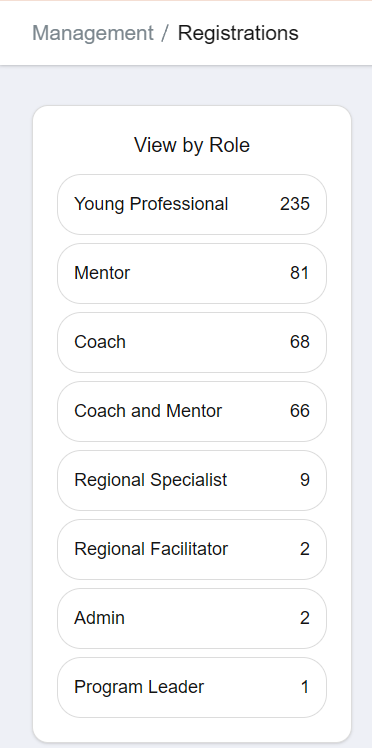
Above the table/list, to the right of the search bar, there is a dropdown of roles you can chose from. This list also displays the count of registrations for each role. Selecting a role will populate the list with the corresponding registrations.
Note
The options shown on the list of roles is limited to the roles your account is allowed to access. The role count is also limited to the number of registrations you’re allowed to view.
Registration List
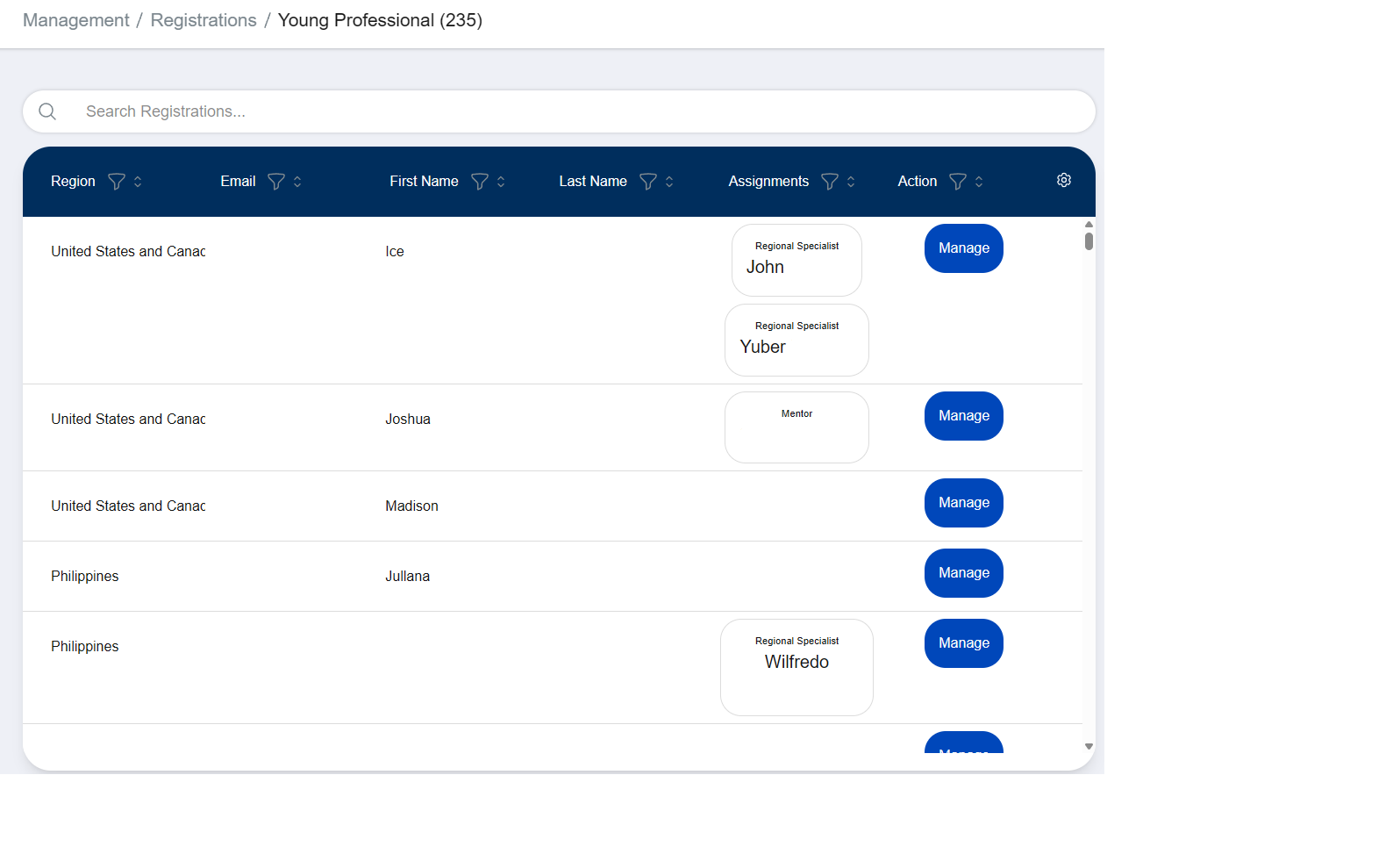
After selecting a role from the dashboard, you will be taken to the list of registrations for that role.
You can utilize the search bar to search for a registration. The search term must match exactly, and will only search through visible columns.
The columns to display can be changed. Filtering and sorting options are also available. See Table Customization.
Here is an example of a list of Young Professionals. Note that most of the information has been redacted.
Registration Detail
After pressing the “Manage” button in the Actions column, you will be taken to the registration’s detail page.
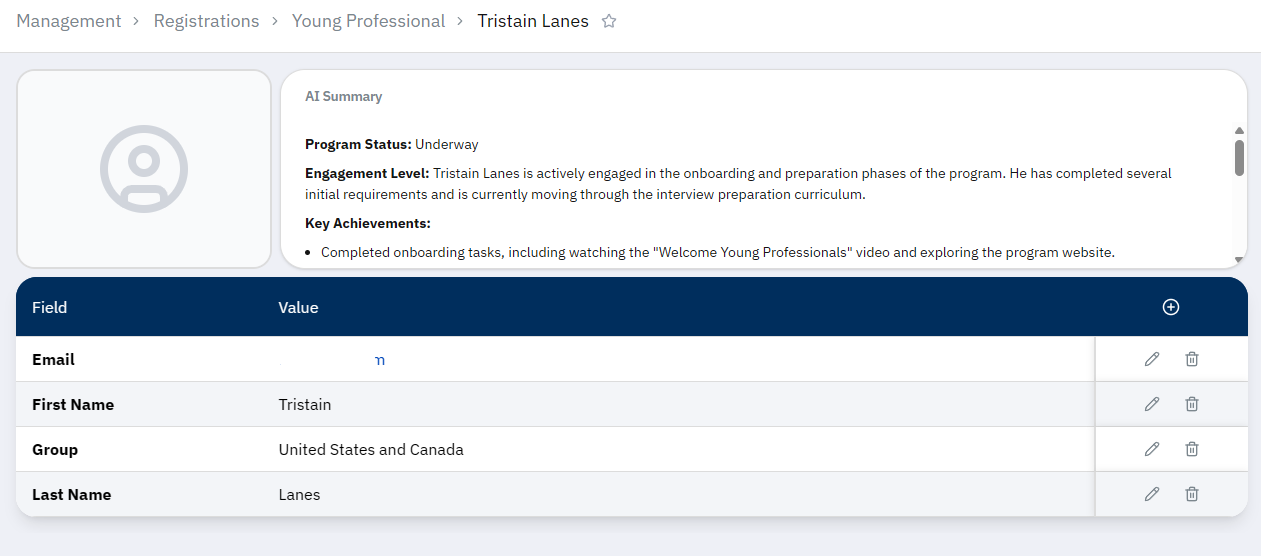
At the top, you will find their profile picture and AI-suggested actions or improvements. The picture can be changed by clicking anywhere in the frame. AI summaries are only available to some roles.
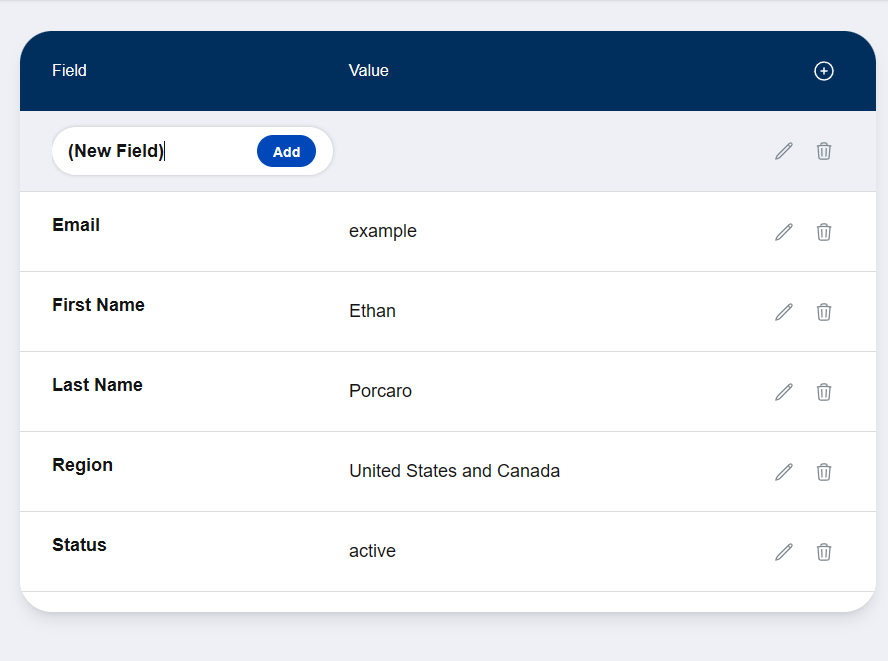
Below, the registration information will be visible in a table.
You can press the pencil icon next to a field to modify it:
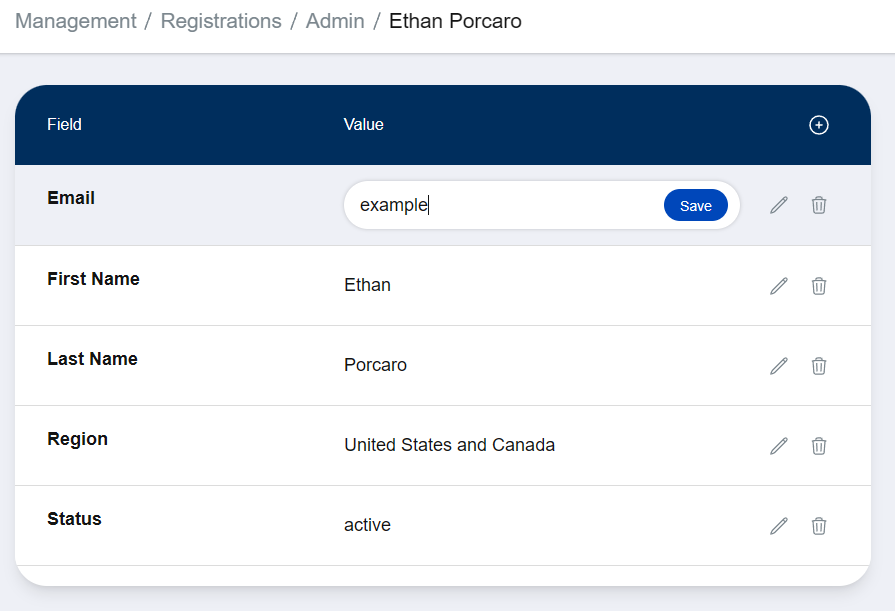
You can press the waste bin icon to delete a field. You will be prompted for confirmation before the field is deleted.
Danger
Be very careful when deleting a field. Once deleted, a field will no longer be visible in the Registration List.
If you accidentally delete a field and cannot recover it yourself, please contact an administrator immediately.
You can also add a field to the registration by pressing the plus icon on the table header. A popup will appear to enter the field name for the row.
Warning
Adding a new field to a registration will create a new column in the registration list for everyone. This column is hidden by default, but the column selector list will get messy if you don’t keep naming consistent. See Table Customization.
Sidebar
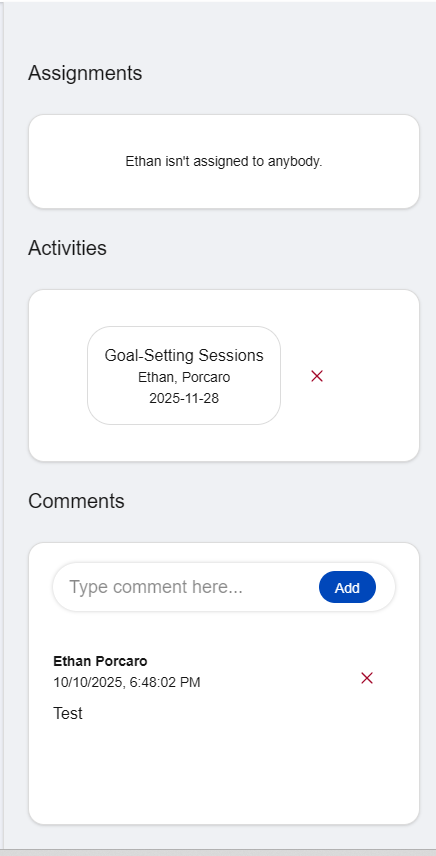
The registration detail pages also have a sidebar that shows additional information. This includes the registrant’s assignments, activities, and any comments left by other users. Some items on the sidebar may contain links to additional information.
Note
Some informating may be hidden from the sidebar if you are not authorized to view it.
Some actions, such as removing activities or comments, may display an access denied error depending on your role.
Tip
You can subscribe to a comment section to receive notification emails on a per-registration basis.
Quick Actions
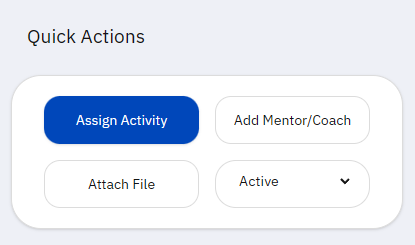
A “Quick Actions” panel will appear at the top of the registration detail sidebar.
Note
Assign Activity and Add Mentor/Coach options are only available on Young Professional registrations.
There are a few actions that can be performed:
Assign Activity
The “Assign Activity” button will open a model for entering activity details. See the Assign Activity section in the Progress guide.
Supervise
The “Supervise” button will mark you as the leader who oversees the registrant’s onboarding process. This is visible to Regional Specialists, Facilitators, and Program Leaders.
Add Mentor/Coach
The “Add Mentor/Coach” button will open a modal with a Registration List. When select a user from the list, and they will be assigned to the Young Professional. The modal will close, and the activity will be visible on the Registration Sidebar after a moment.
Attach File
The “Attach File” button will open a modal with a file upload box. You can either drag a file onto the box, or click the button to find the file on your computer.
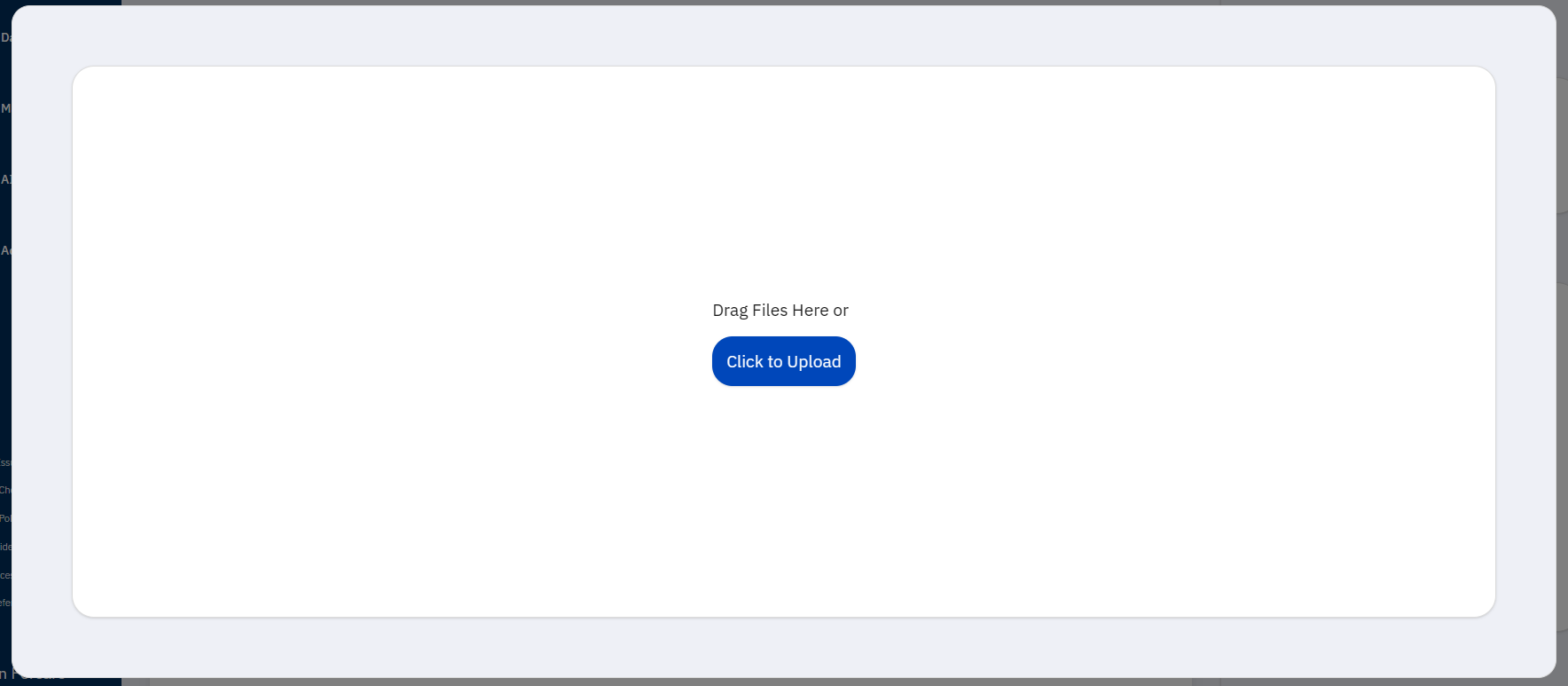
Attaching files can be helpful for a variety of reasons, including:
Referencing a document worked on together
Attaching resume revisions
Attaching videos
The maximum file upload size is 80MB. Do not upload anything that infringes copyright, is dangerous, or illegal.
After uploading, files can be viewed in a list at the bottom of the sidebar.
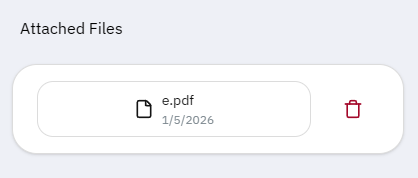
Here you can view/download them, or delete them if needed.
Warning
Deleted files are immediately deleted and cannot be restored, even by administrators.
Change Status
You can use the dropdown to change the YP’s status. The The current options are:
Active: The YP is reachable and working in the program
Alumni: The YP has completed the program
Underway: The YP is onboarding the program
Passive: The YP us unreachable, stalled, or otherwise inactive in the program
Note
If you approve a registration on the Applicant Review page, the status will default to “Underway”. You cannot change an approved registration back to “Pending” or “Rejected”. If you made a mistake, please contact a program leader or press the Report Issue button on the sidebar.