Assignment Profiles
The assignment list shows all the people you are assigned to, and their progress toward completion of the program.
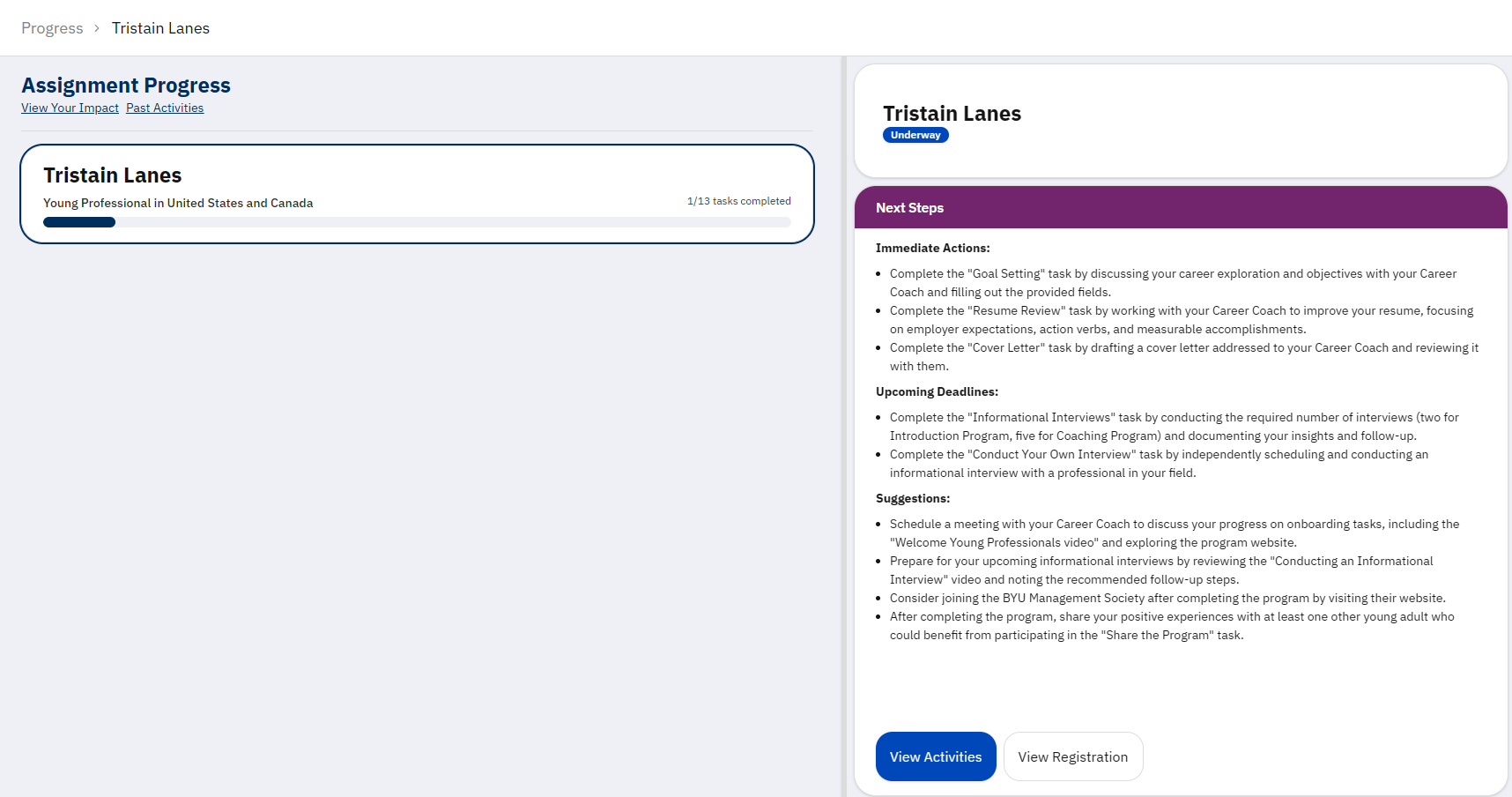
Each assignment will have a progress bar indicating their progress toward completion of the program.
When you click an assignment, the details for that registrant will appear.
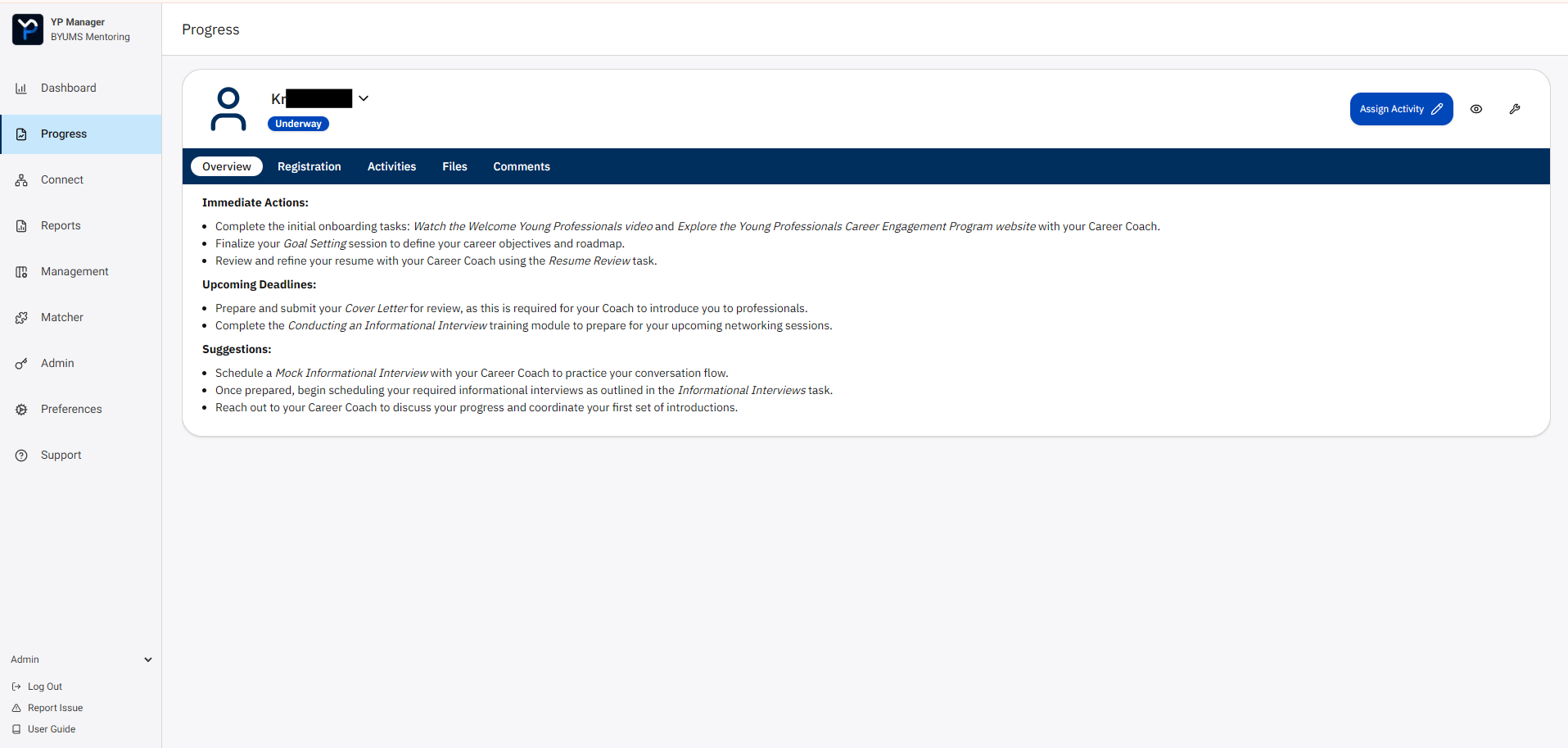
The details are split into tabs/sections.
Overview: An AI summary of the registrant’s status.
Registration: The registrant’s details, such as county, essay, email, etc.
Activities: A list of the registrant’s completed activities. Each item is an expandable accordion that shows the activity’s description, the registrant’s responses, and your optional notes.
Files: Files or documents attached to the profile.
Comments: Comments left on the profile by leaders.
Assign an Activity
At the top right of the details panel, there is an Assign Activity button.
Clicking this will open a modal for assigning an activity to the registrant.
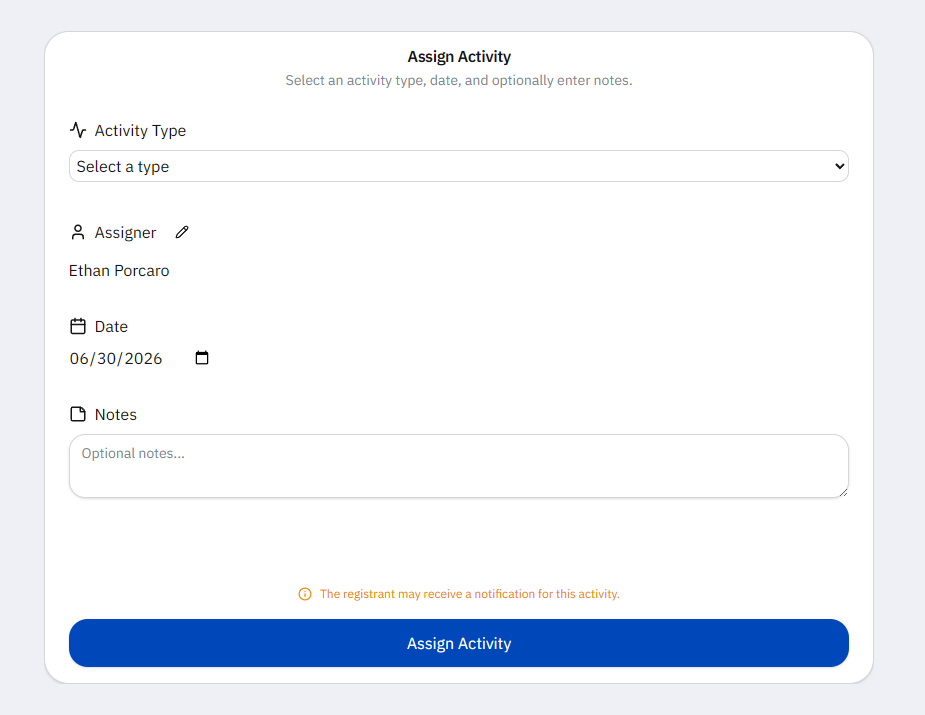
You can select an activity type, assigner (defaults to you), date, and optional notes.
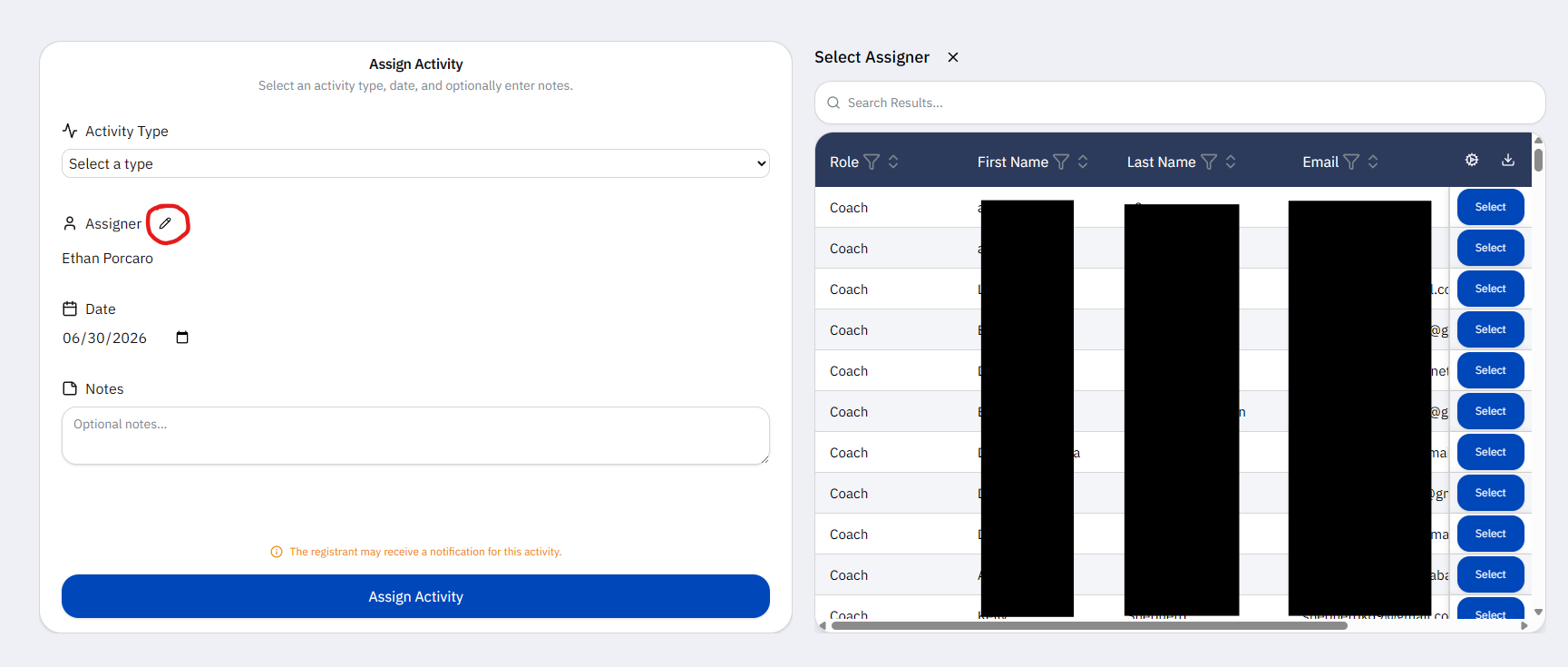
If you want to set the assigner to someone else, click the pencil icon. A list of Coaches and Mentors will expand, and you can select one from there.
Warning
If the registrant has a YP Manager account, they may receive an email notification. Be mindful of this when creating many assignments.
There is also an eyeball icon next to the Assign Activity button, which lets you view the Activity List from the Young Professional’s perspective.