Activity List and Details
Activity List
The activities list is accessible from the Management page. It shows a list of all the activities your account is allowed to view. Depending on your role, this list may be empty.
See the Table Customization guide for options on filtering or ordering rows.
Here is an example. Note that most information has been redacted.
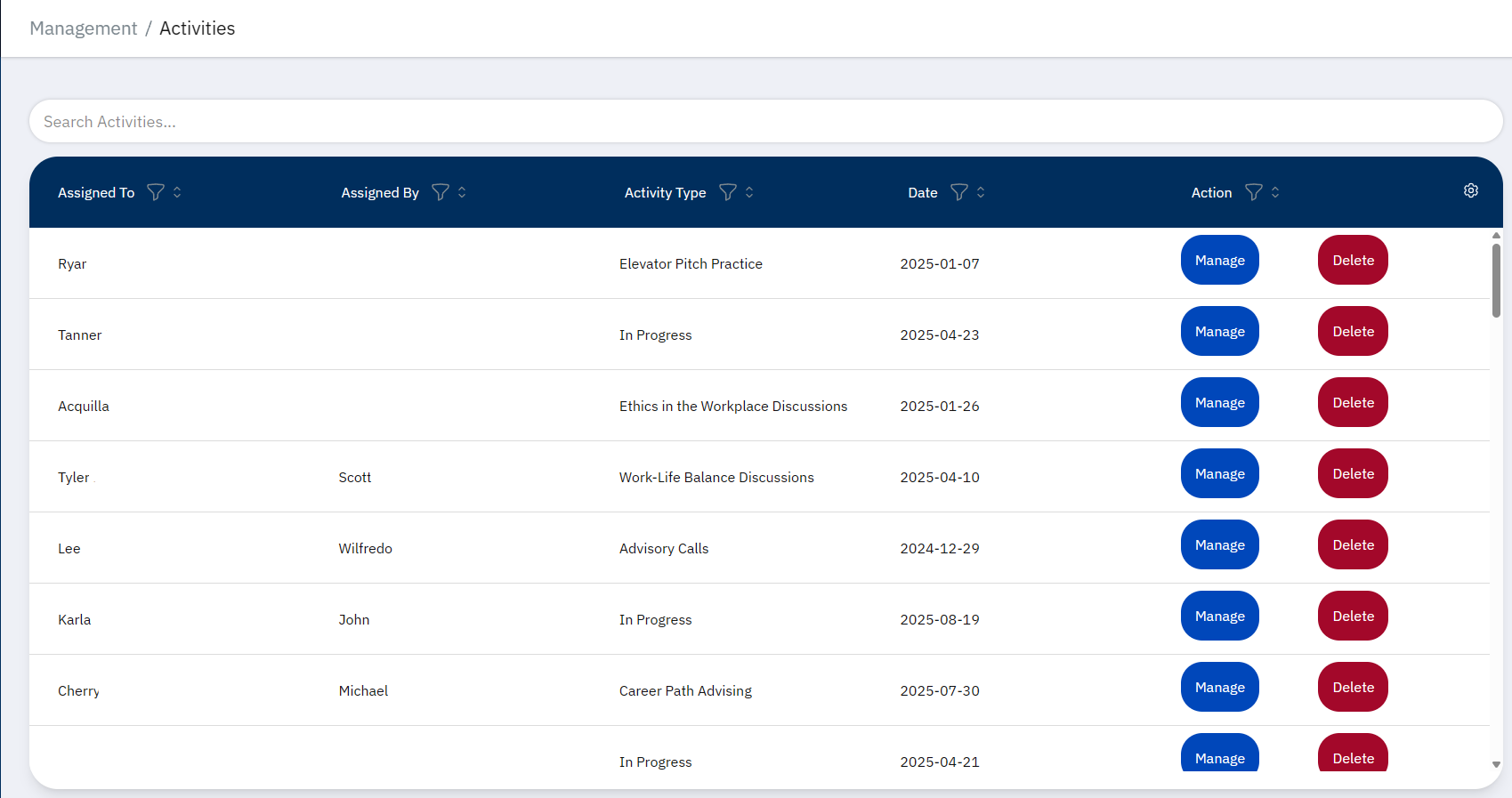
From this page, you can view an activity’s details by pressing the “Manage” button in the Actions column, or delete it with the “Delete” button.
Warning
Deleting an activity will remove it from both the activity list, as well as the Registration Detail pages for its participants.
Activity Detail
After pressing “Manage”, you will be taken to the activity’s detail page. This page shows the activity’s type, date, who it’s assigned by, and who it’s assigned to.
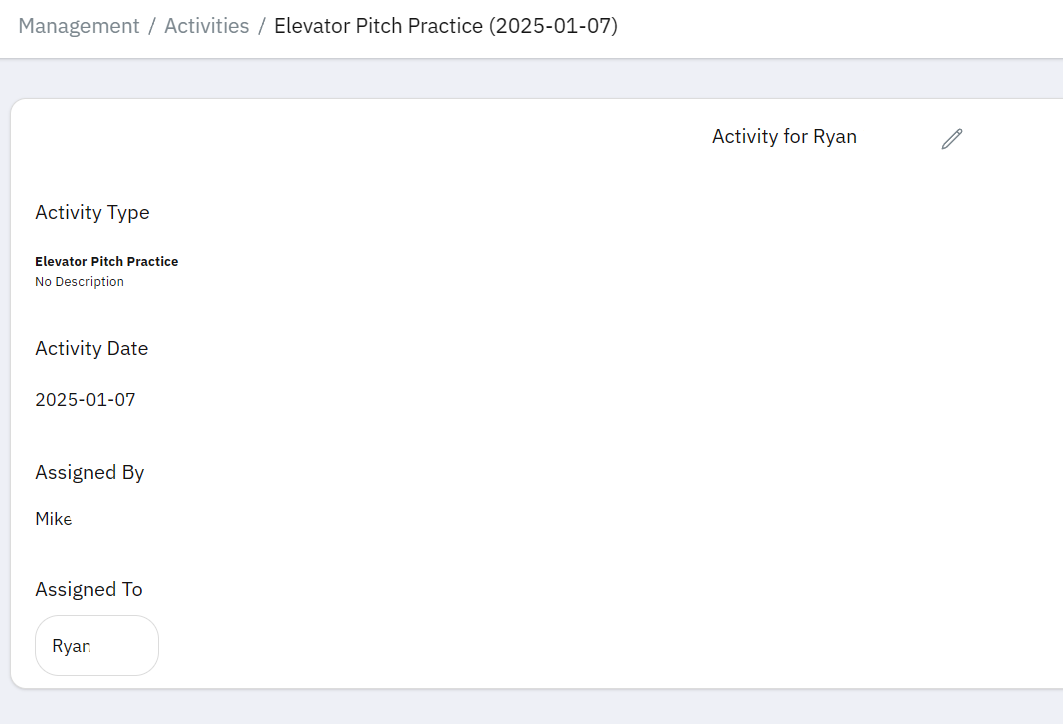
The name of the Young Professional the activity is assigned to is clickable, and will take you to their Registration Detail.
Editing an Activity
You can edit an activity by pressing the pencil icon near the top of the page.
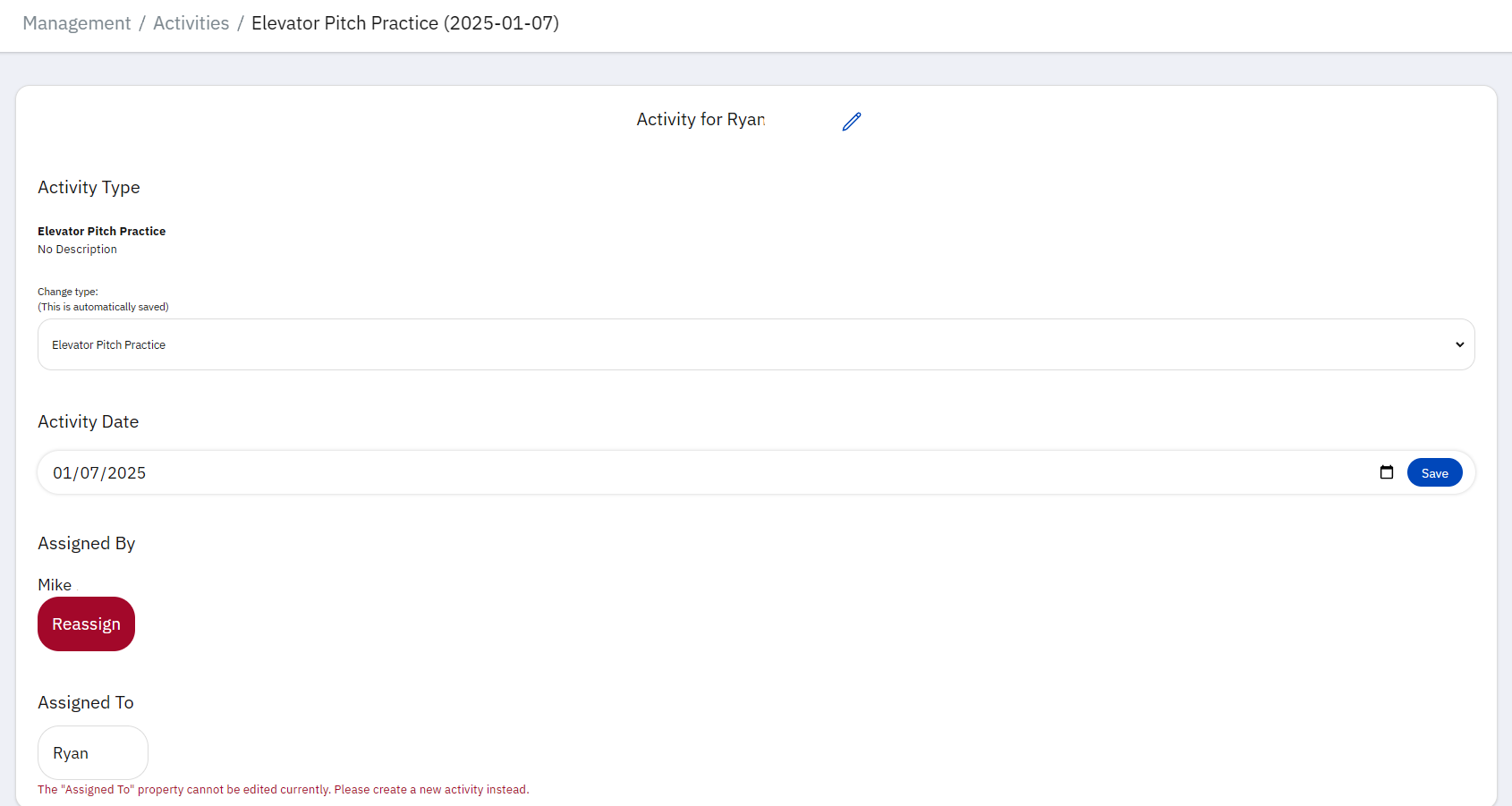
The activity type can by changed using the dropdown. This is automatically saved as soon as you select it.
The activity date can be changed using the date picker. It must be manually saved.
The Coach the activity is assigned to can be changed by pressing “Reassign”. This will open up a modal with a Registration List to select the new Coach. You can also add a write-in name, but only do so if that person is not in the list.
The Young Professional for the activity cannot be changed at this time. Please delete and recreate the activity if neeed.
Note
There are plans to improve the interface for the Assignment Detail. If the layout has changed, you can always revisit this guide for updates.