Table Customization
Most of the lists of information in the manager are represented using tables. The headers for these tables have filtering, ordering, and customiztion options.
Here is an example of the default Registration List table header:

Filtering
Individual columns can be filtered by pressing the funnel icon. You will see a list of all unique values in that column, each with a corresponding checkbox.
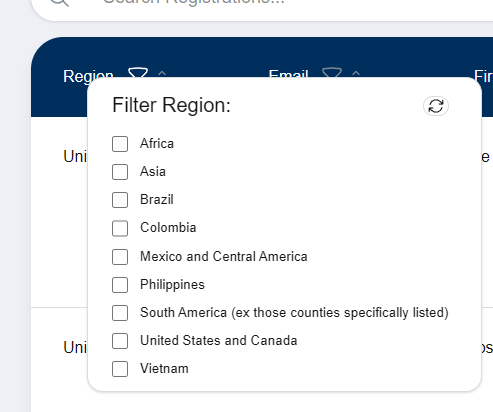
By checking a box, you limit table results to rows with that value in the column. You can check multiple boxes to expand the results of the filter. If you don’t check any boxes, no filter will be applied and all results will be included.
You can press the reset icon at the top-right corner of the filtering settings to remove all filters.
Ordering
Next to the funnel icon is an icon with arrows.
If the arrows are pointing both up and down, then the order of results will follow the application default.
If you press the arrows once, the icon will change to an upward facing arrow. This will set the order to ascending (A-Z order).
If you press the arrows again, the icon will change to a downward facing arrow. The list order will now be descending (Z-A order).
If you press the arrows one more time, it will go back to default order.
Column Selection
You can choose which columns show by pressing the settings cog at the right end of the table header.
A panel will open and allow you to select the column order and which columns show.
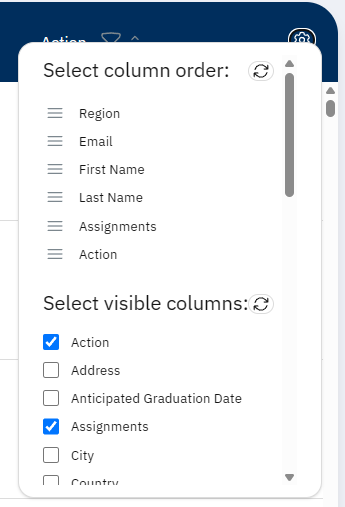
The order can be changed by dragging the icon (three stacked lines) that appears next to each visible column.
You can select visible columns using the checkboxes under the “Select visible columns” section.
When you set a column to visible, it will be added to the end of the order list. You can then arrange it if needed.
When you set a column to hidden, it will be removed from the order list.
Both the column ordering and visible column sections have individual reset icons to set the order or visibility to the application default.
Note
Column visibility and ordering settings are saved in your browser and will not apply on other computers or devices
The settings are saved for each table. This means that the Activity List can have different settings from the Registration List. Different roles withing the Registration List also have individually configurable settings.