Matcher
Matcher Dashboard
Depending on your role, you may receive access to the automatic matching tool. This tool allows leaders to quickly compare program participants that have similar interests.
If you have access to Matcher, you will see a button for it on the sidebar.
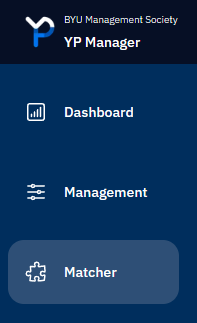
After clicking the button, you will be taken to the Matcher dashboard.
The top of the dashboard has a search bar to find any registration in the program (limited to your access permissions).
Below it, a series of tiles will show recent registrations that have not been assigned to anyone.
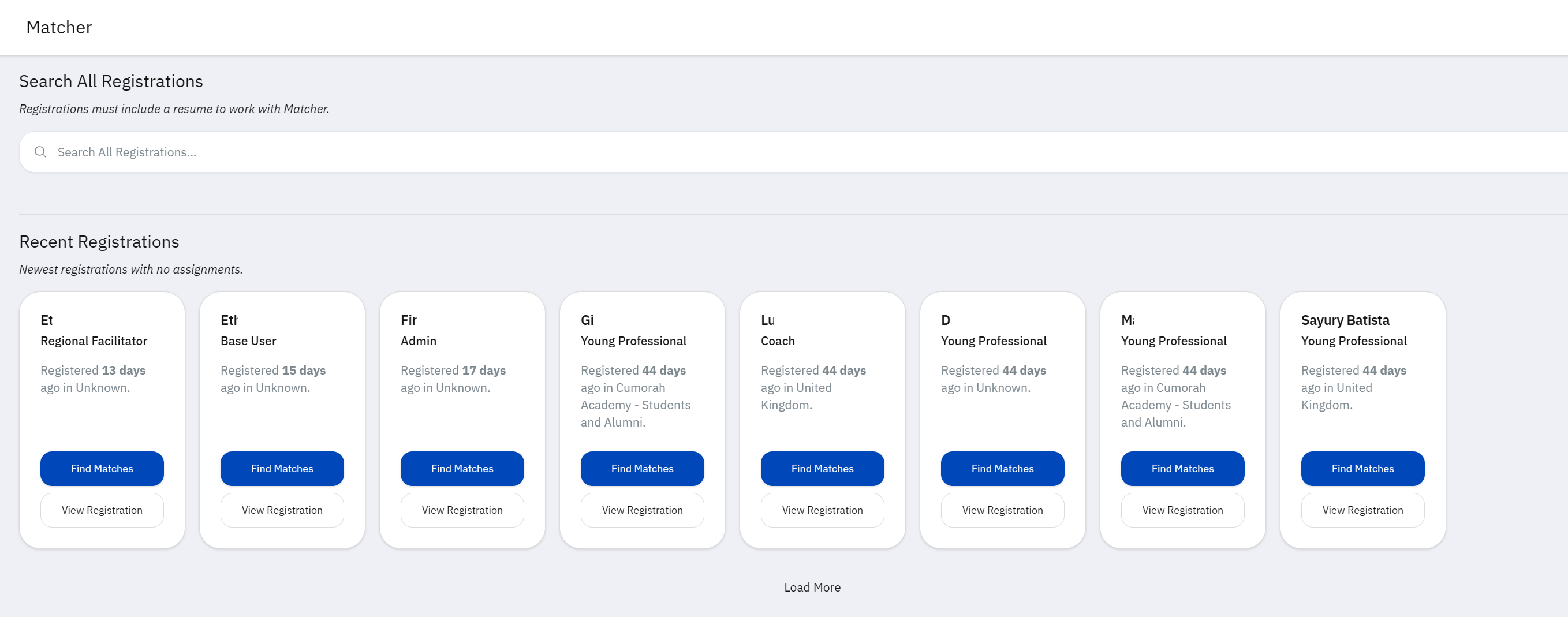
You can press the Load More button to display more of these tiles.
If you scroll further down, you will find a table displaying past ratings you have left on suggested matches. You can remove past ratings by pressing Undo Vote. This is useful in cases where you accidentally give a match the wrong rating.
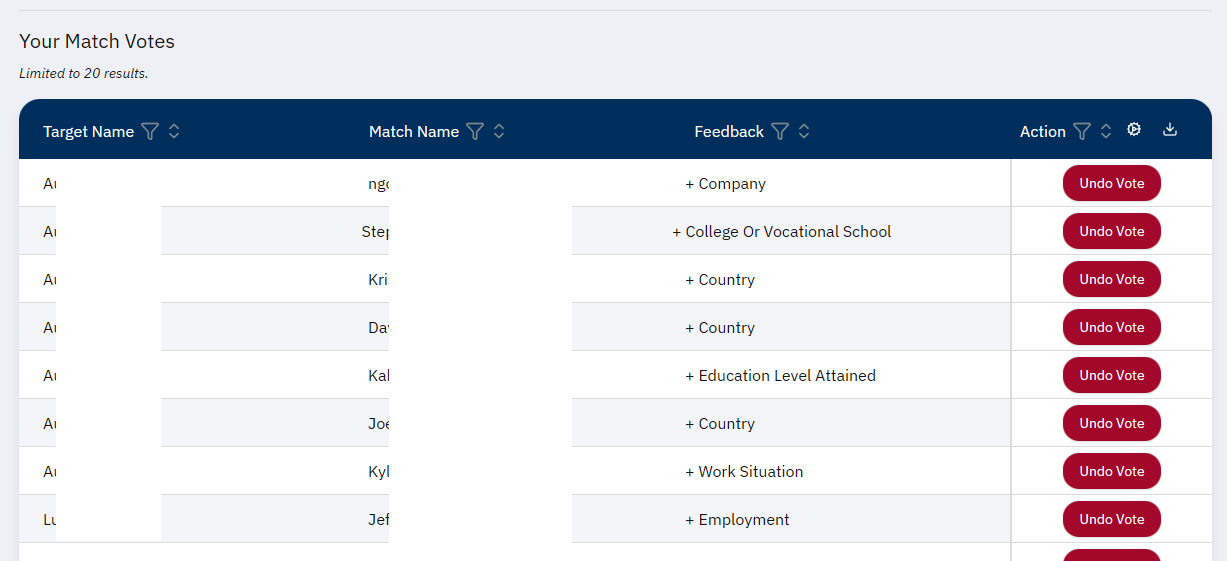
A plus (+) sign before a field name means that you liked/upvoted the field.
A minus/negative (-) sign means that you disliked/downvoted it.
Note
You cannot undo field-level ratings for a vote at this time.
Only the last 20 votes will show. If you need to go back further, please contact an administrator using the Report Issue button on the sidebar.
Match Finder
Matcher Settings
After searching for a registration, or selecting it from the list of recents ones, you will be taken to the Match Finder.
One the left side of the screen, you will see the Registration Detail for the person you selected.
On the right side, you will see the Matcher settings.
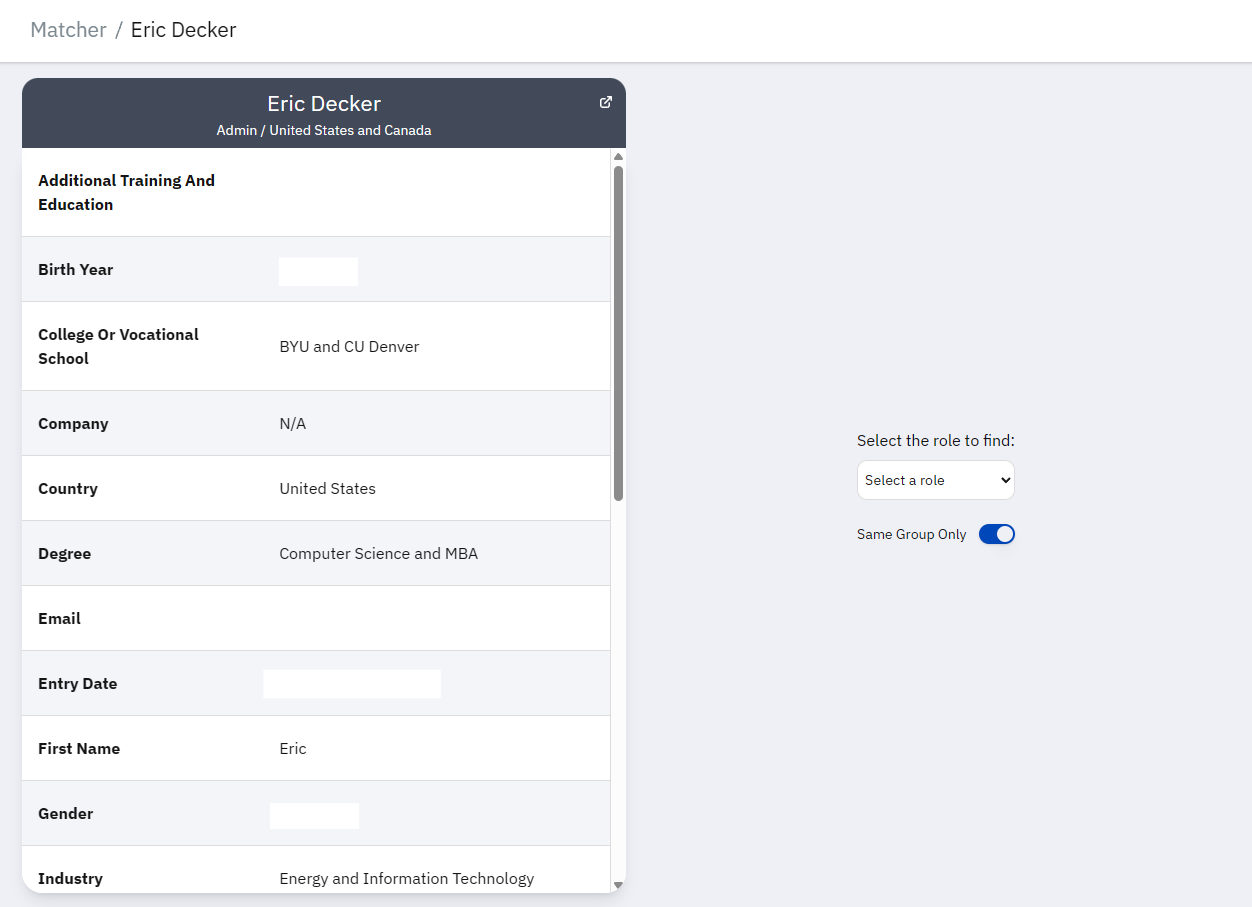
You can then select the role to filter match candidates by.
If your target registration on the left is a Coach, you will probably want to select Young Professional from the dropdown.
If it is Young Professional, you could try searching for a Coach, Mentor, or Coach and Mentor.
Warning
The Coach and Mentor is a distinct role that applies to participants who registered to be a Coach and Mentor together.
Selecting it will not combine results from both Coach and Mentor roles.
If you have program-wide access (Program Leaders and Admins only), you will see a toggle labeled Same Group Only.
Disabling this will show match candidates that may be outside of the target’s region.
Note
The role selector will only display roles you are allowed to view. For example, Coaches cannot view Admins.
We are still working to refine access permissions to keep the platform helpful and secure.
After selecting a role, Matcher will begin searching for a candidate. This should only take a few seconds.
Warning
If no matches can be found, a small popup will appear to say so.
You can try searching for a different role, or if allowed, disable Same Group Only.
Matcher Results
When a match is found, the settings panel on the right will be replaced with the Registration Detail for the candidate.
An AI summary of the match will appear, and a score from 1-10 will be displayed.
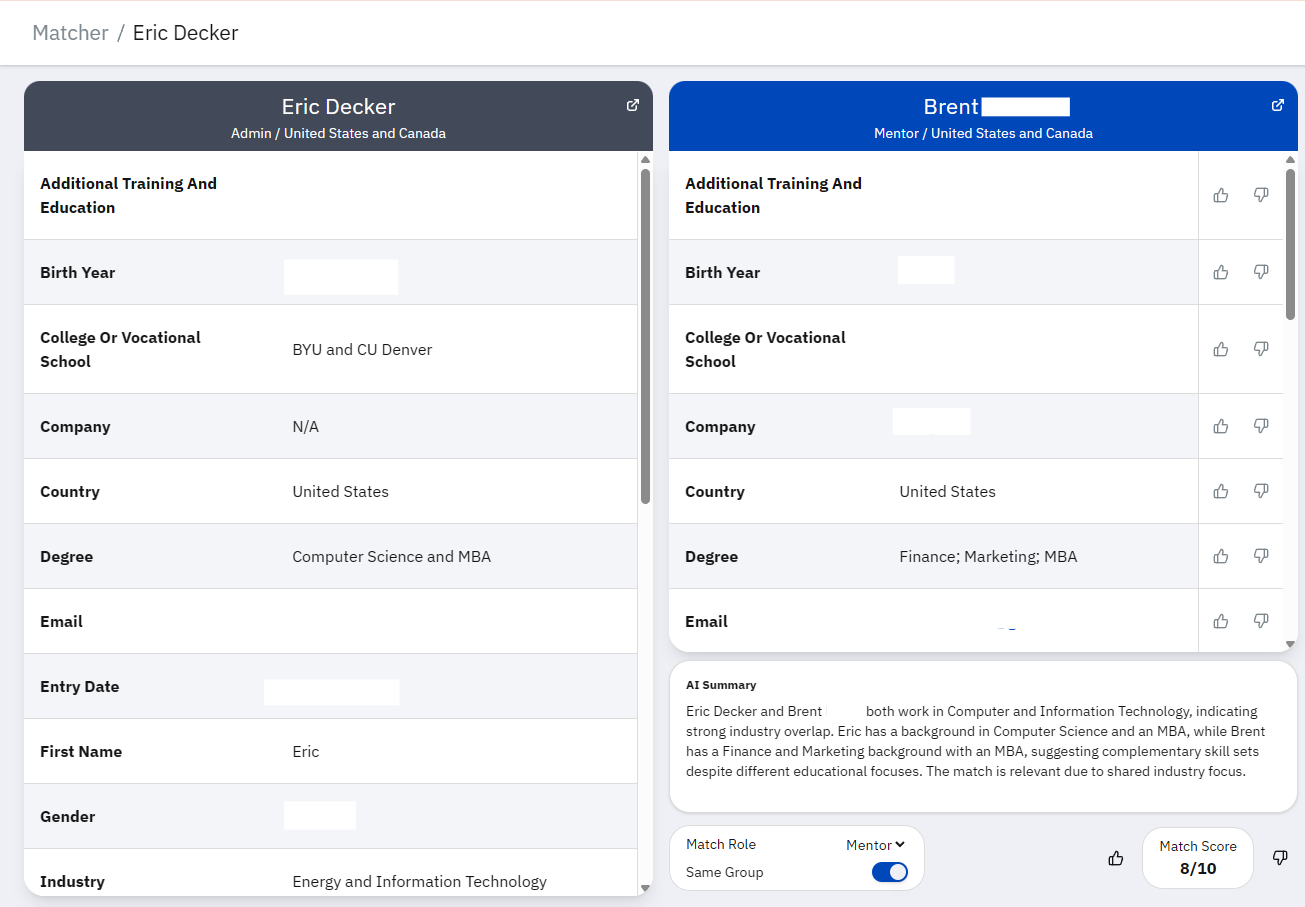
Each row of the candidate’s data will have buttons to rate the relevance of that field. Please take time to look through them and consider what is relevant.
Only vote on the rows that have meaningful information. You do not need to vote on all of them.
Once you have rated at least one row, you can use the buttons next to the Match Score tile to give the candidate an overall vote.
Matcher will then begin searching for another candidate.
Votes do not yet affect the candidates that display next.
Warning
AI can make mistakes. It might interpret registration data incorrectly, or give a different score than expected. Double check its responses/judgement before voting.
If it gives an irrelevant or inappropriate response, please alert us using the Report Issue on the sidebar.
We are continuously working to improve the relevance of matches.
Note
If you keep getting low match scores, it may indicate that there are few good results in the system.
It may also indicate that your target registration does not have enough details. See Registration Detail for information on editing registrations.
Tip
When comparing registrations, you will see their name and region in the header. You can click the icon in the top right corner of the headers to visit their registration details.