Dashboard
When you first log in to YP Manager, you will start at the main dashboard.
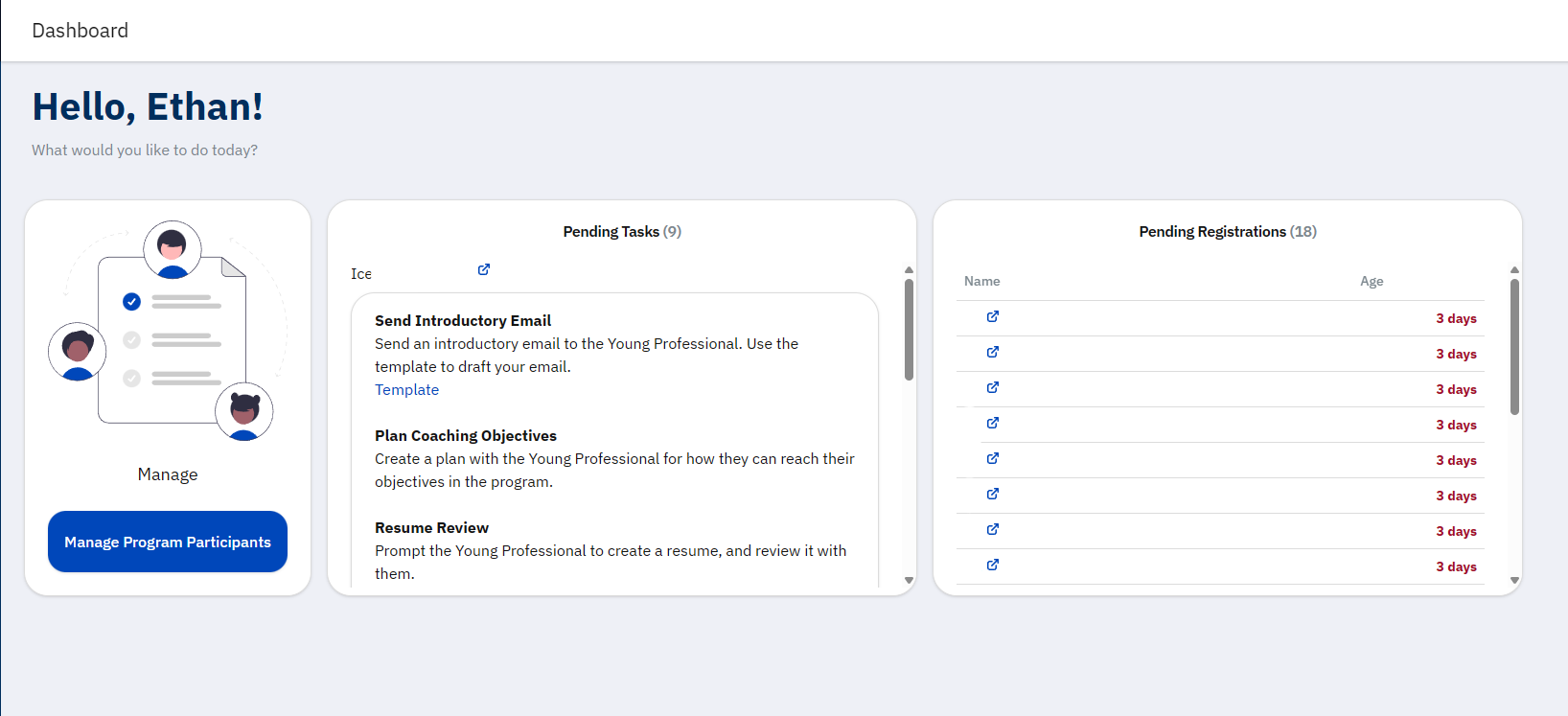
Your role will determine which panels you can view. See Role Specific User Guides for more information on roles.
The following panels or links may show:
Manage Dashboard
The “Manage” card will take you to another dashboard with additional links.
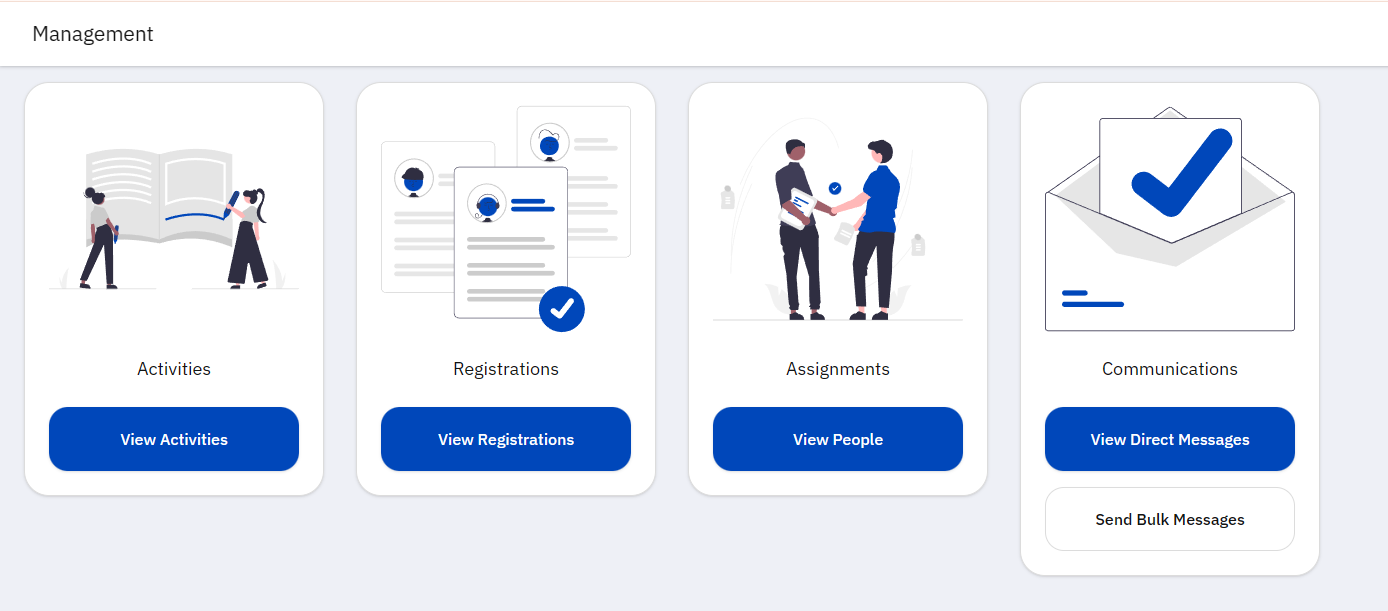
They each have their own guide:
Admin Dashboard
The admin feature guide is not publicly available. If you are an admin or program leader, please contact our IT team for instruction.
Pending Tasks
The “Pending Tasks” tile will show the tasks you need to complete for each Young Professional you are assigned to.
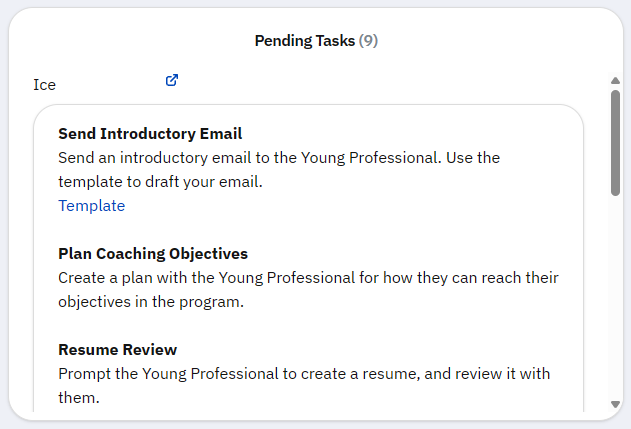
You can click the blue link next to the YP’s name to view their registration.
Under each YP name, you will see a box with the descriptions for each incomplete task. Some tasks will display a due date next to the task name. The color of the date will change depending on how late it is.
Note
Read the task descriptions and due dates to determine which ones are urgent. Some may take weeks to complete. Do not rush tasks just to get them off the list.
Pending Registrations
The “Pending Registrations” tile will show registrations that are waiting to be reviewed.
See the Registration Review guide for instructions on how to review these.
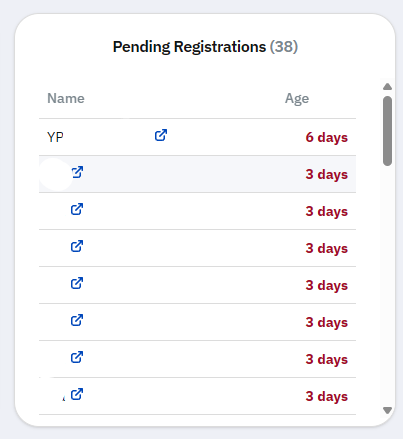
Note that names have been redacted in this example.
The registrant’s name will show, as well as the number of days they have been waiting. There is a blue link next to each name that will take you to their Registration Review page.
The color of the registration “age” will change depending on how long it has been waiting.